Fast tree browsing
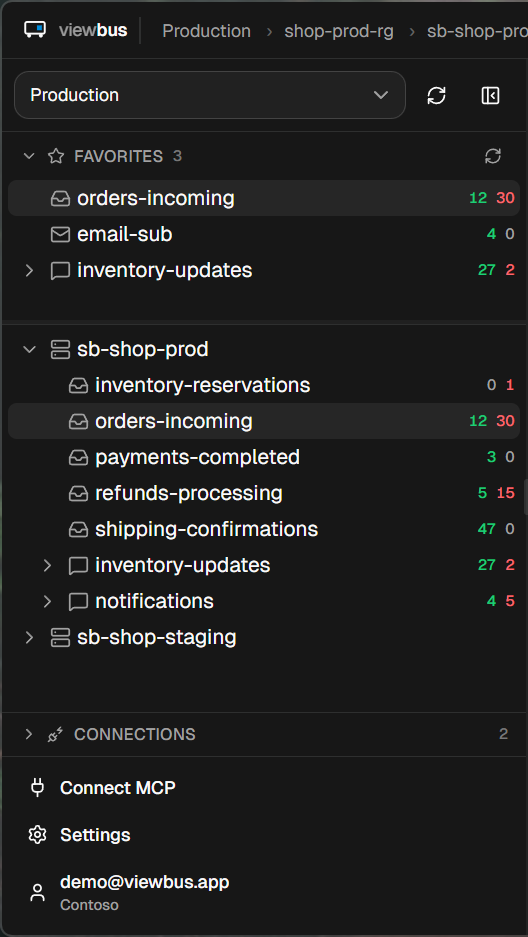
Subscriptions, namespaces, queues, topics — indexed locally in SQLite. Navigation is instant, even on enterprise tenants with thousands of resources.
Search, inspect, edit, and resend messages in seconds — with custom dead-letter alerts and MCP-powered debugging built in.
Free · v0.7.1 · no account, no telemetry
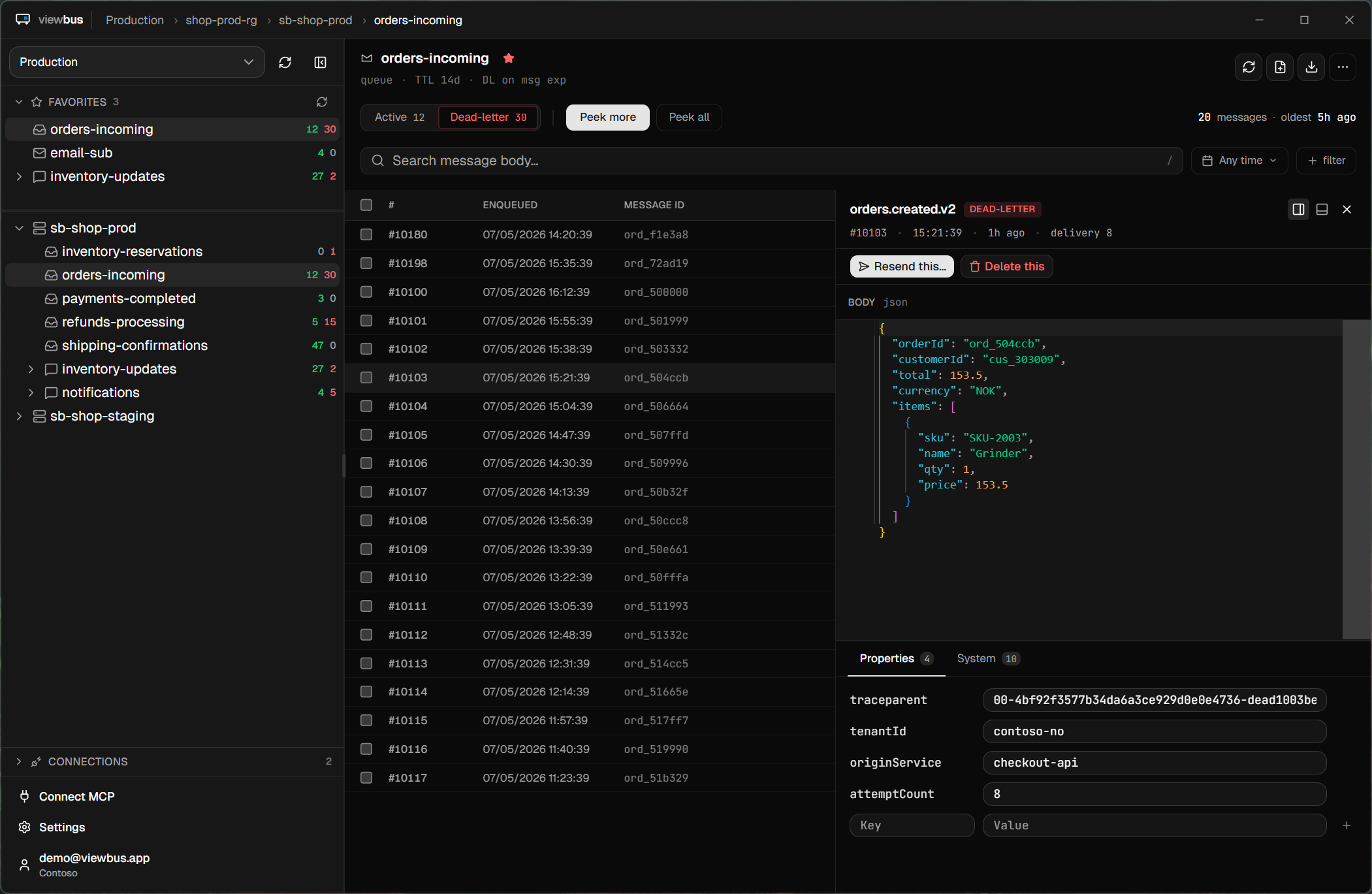
Everything you'd want Service Bus Explorer to be, without the legacy baggage.
Subscriptions, namespaces, queues, topics — indexed locally in SQLite. Navigation is instant, even on enterprise tenants with thousands of resources.
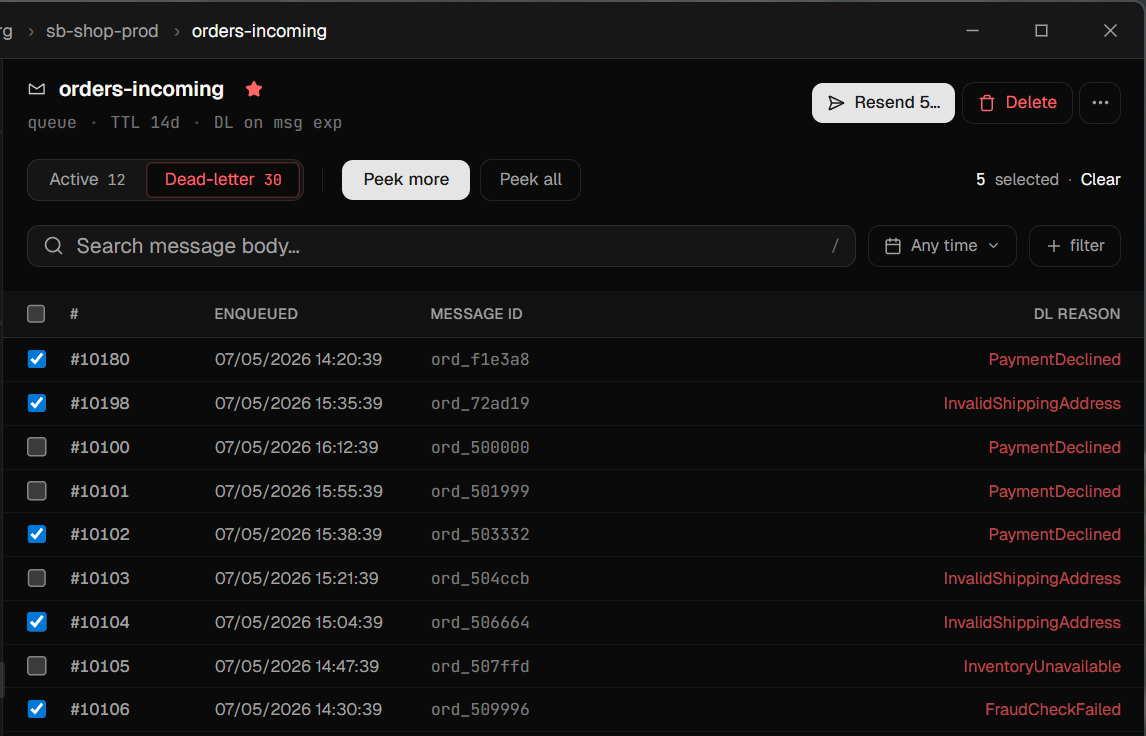
Peek active and dead-letter messages without dequeuing. Filter by session, ID, subject, or DL reason. Edit a body before resending, compose new messages, or drain a queue with a confirmed bulk action — purge, send-all-to-DL, or empty an entire DLQ.
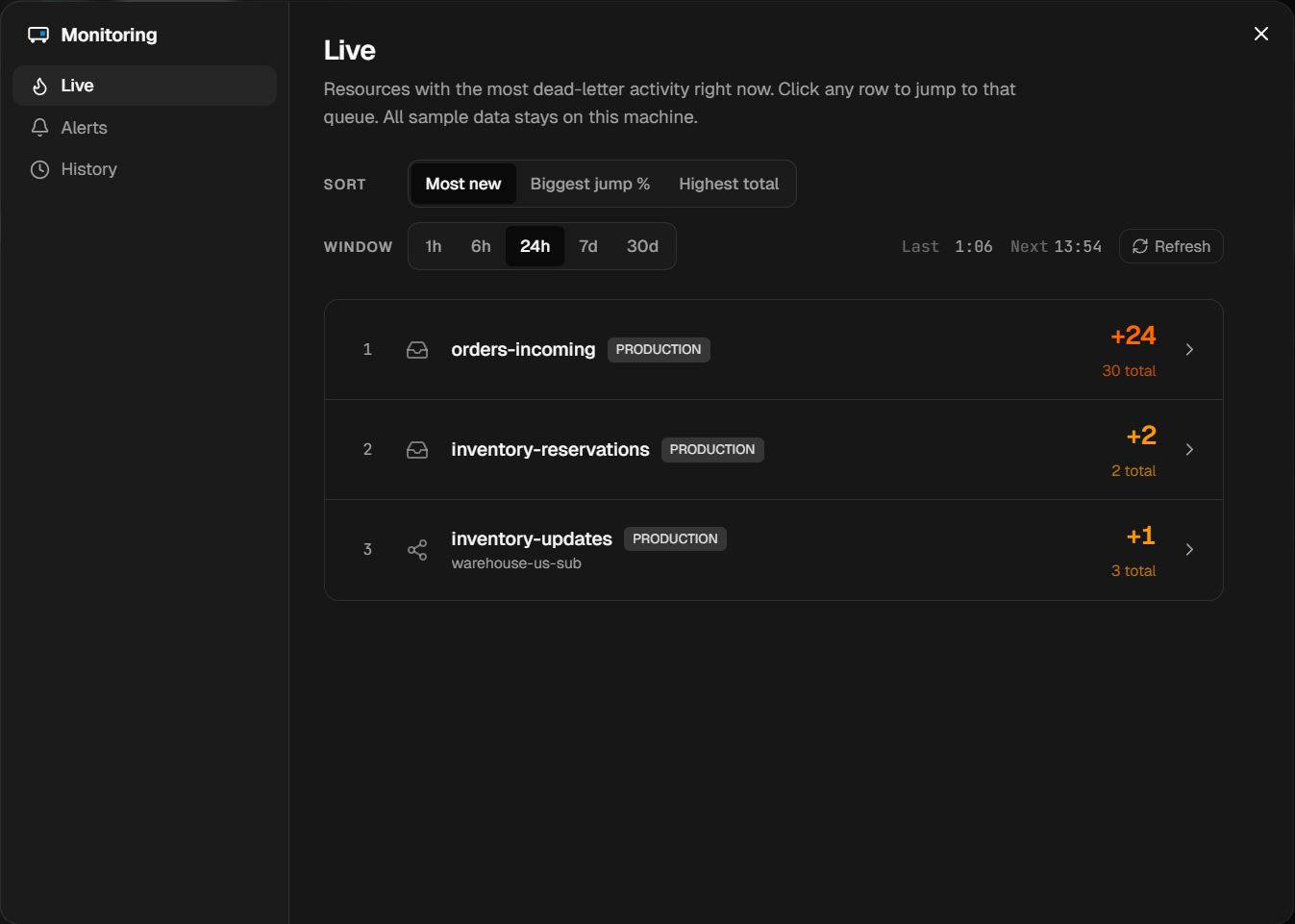
Pick exactly which queues, topics, and subscriptions to watch, and which ones should alert. Runs in the background at a low cost to your machine.
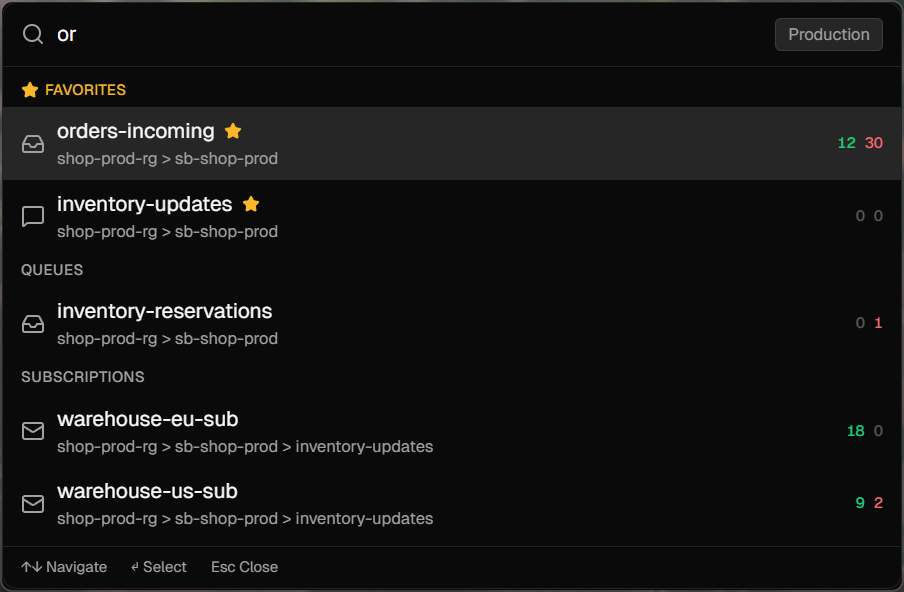
Ctrl+I opens a system-wide fuzzy search across every indexed resource. Stays active even with viewbus closed to the tray.
Ships a Model Context Protocol server so Claude, ChatGPT, or any MCP-aware AI can list namespaces, search resources, peek queues, and fetch full messages.
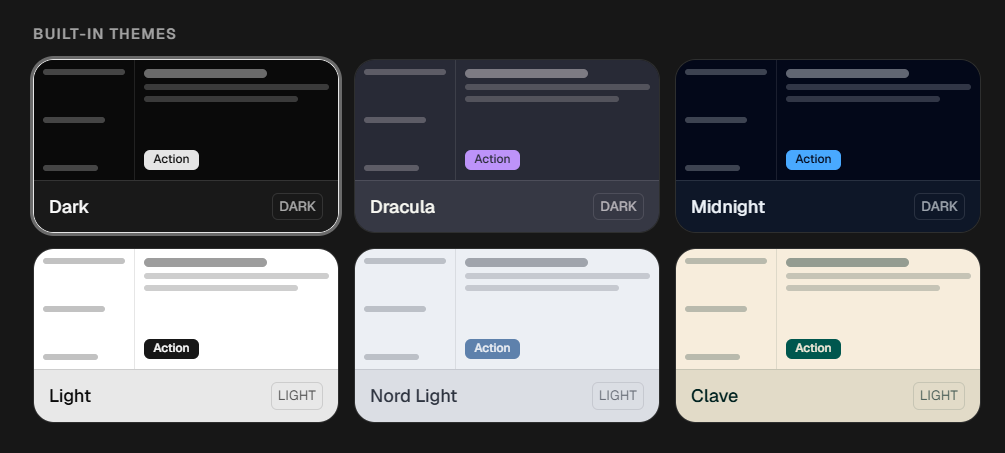
Six built-in dark and light themes — including a warm Clave theme. One-click importer pulls your active VS Code theme into viewbus.
The classic Service Bus Explorer is Windows-only; the Azure Portal can't search across resources or alert you. Here's where viewbus fits — and where the others still win.
| viewbus | Service Bus Explorer | Azure Portal | |
|---|---|---|---|
| Native app for Mac & Windows | Windows only | In-browser | |
| Search message bodies across queues, topics & subscriptions | — | — | |
| Edit & resend, with a side-by-side diff | Limited | — | |
| Alerts when a queue or subscription crosses a threshold | — | — | |
| AI assistant access (MCP server) | — | — | |
| Relay, Event Hubs & Notification Hubs | — | — | |
| Price | Free | Free | Free |
Free, and shipping often. A few things already in the works:
History and sparklines per resource, so you can spot a backlog that started building two days ago — not just right now.
Syntax-highlighted XML, YAML, and protobuf bodies — not just JSON and plain text.
Point viewbus at the local Azure Service Bus emulator for development, right beside your real namespaces.
Browse and one-click-install community-made viewbus themes, share your own, and export your full setup to move between machines.
Open any request to upvote it on GitHub — the most-wanted ship first.
No backend, no telemetry, no account. When you sign in, it's to your own Azure — not to viewbus. Tokens and connection strings stay in your OS keychain, never on disk in plain text.
We can't see your namespaces or your messages, and we're not training any AI on what you do. Don't take our word for it — open the network inspector and see exactly where traffic goes.